Key Takeaways
- A well-structured Facebook Ads report helps you clearly see what’s working, what’s underperforming, and where your budget is going.
- Tracking the right metrics makes it easier to improve results instead of relying on guesswork or assumptions.
- Regular reporting helps you spot trends early and fix issues before they impact performance.
- Clear reports make it easier to explain results to clients or stakeholders and build trust.
- Over time, consistent reporting leads to smarter decisions and better returns from your ad spend.
Running Facebook Ads is one thing. Proving they’re delivering real results is another. Whether you’re managing campaigns for clients, working at an agency, or reporting to leadership, a clear Facebook Ads report helps you demonstrate performance, justify ad spend, and improve ROI. In this guide, you’ll learn exactly what to include in a Facebook Ads report for clients and how to build one step by step so you can showcase results with confidence and make smarter, data-driven decisions.
What is a Facebook Ads Report?
A Facebook Ads report gives you a clear snapshot of performance so you can prove results and improve ROI. You can generate these reports inside Meta Ads Manager by selecting specific campaigns, time ranges, audience segments, and objectives. The goal is to make your ad data easier to read so you can quickly spot trends, evaluate ROI, and adjust your strategy. These reports can be customised, exported, or shared, making them useful for both solo marketers and larger teams.
What to Include in a Facebook Ads Report?
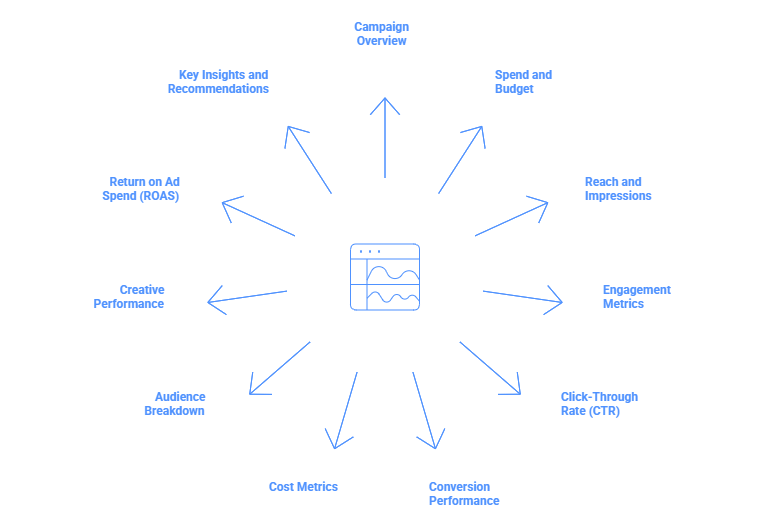
Here’s everything that should be included in a Facebook Ads Report:
-
Campaign Overview
Start your report with a summary of what the campaign was about. Mention the campaign name, objective (such as awareness, engagement, or conversions), the total budget, and the exact date range the report covers.
Also, give a quick look at how the campaign performed overall. Did it meet its goal? Were there any major changes made mid-way, like creative updates or budget increases? This section helps your reader get a quick idea of whether things are on track.
-
Spend and Budget Analysis
This section shows how much you spent compared to how much you had planned to spend. Include:
- Total budget allocated
- Total amount spent
- Percentage of budget used
- Average daily spend
- Whether the campaign is on pace to finish spending the full budget
If you are under- or overspending, briefly explain why. Maybe the audience size was too small, or maybe certain ad sets paused early. Spotting this helps avoid wasted ad spend.
-
Reach and Impressions
This part is about how many people saw your ads and how often.
- Reach: Number of unique people who saw your ad
- Impressions: Total number of times the ad was shown (including repeat views)
- Frequency: Average number of times each person saw the ad (Impressions ÷ Reach)
High frequency without engagement may mean users are tired of seeing the same ad. It’s also useful to show reach as a percentage of your target audience. That gives a sense of how deep your ad has gone into your chosen market.
-
Engagement Metrics
Here, show how people interacted with your ads:
- Total likes, shares, comments, reactions
- Number of video views or link clicks
- Engagement rate = (Total Engagement ÷ Impressions) × 100
You can also break this down by ad type. For example, video ads may get more shares, while image ads may get more likes. This helps you understand if your content is resonating with your audience emotionally or socially.
-
Click-Through Rate (CTR)
CTR tells you how many people clicked on your ad out of all those who saw it.
Formula: (Total Clicks ÷ Total Impressions) × 100
- CTR percentage
- Total number of clicks
- Compare it with past campaigns or industry benchmarks
If CTR is dropping, it may be time to refresh your ad creatives or change your copy. You can also test different call-to-action buttons or headlines to see what works best. The average Facebook ad Click-Through Rate (CTR) in the US generally ranges between 0.90% and 1.91% across all industries, with some 2025 data suggesting a median closer to 1.54%–1.75%.
Read related: What Is a Good Average CTR for Facebook Ads?
-
Conversion Performance
This section explains whether the people clicking on your ad are doing what you want them to do.
- Total conversions (purchases, sign-ups, leads, etc.)
- Conversion rate = (Conversions ÷ Clicks) × 100
- Conversion value (if tracking revenue)
If you track more than one type of conversion (like purchases and form fills), list them separately. Trends over time are also helpful. For example, did conversions go up after you changed the copy or retargeted a new audience?
-
Cost Metrics
Break down how much you’re spending to get clicks, conversions, or just visibility. Include three main metrics:
- Cost Per Click (CPC) = Total Spend ÷ Total Clicks
- Shows how much each click costs. A low CPC is good, but only if those clicks turn into meaningful actions.
- Cost Per Conversion (CPA) = Total Spend ÷ Total Conversions
- This is especially important in performance marketing. You can even compare it to how much a customer is worth to your business.
- Cost Per Thousand Impressions (CPM) = (Total Spend ÷ Impressions) × 1000
This tells you the basic cost to show your ad to a thousand people. It helps you H3: understand media costs and market competition.
-
Audience Breakdown
Now it’s time to zoom in on who is responding to your ads. Break down performance by:
- Age group
- Gender
- Location
- Device (mobile vs desktop)
- Placement (Facebook Feed, Instagram Stories, etc.)
Highlight which segments are giving you the most clicks, conversions, and returns. This helps with future targeting. For example, if women aged 25–34 from Los Angeles are converting better, you might want to shift more budget there.
-
Creative Performance
Look at how each ad creative performed. Include:
- Which images or videos got the most engagement
- Which headlines or descriptions led to more clicks
- Which call-to-action buttons performed better
Use this to identify your top-performing creatives. Mention what made them stand out. Was it the image style? The messaging? The format? Use this learning to improve future creatives and reduce ad fatigue.
-
Return on Ad Spend (ROAS)
This is where you measure profitability.
ROAS = Total Revenue ÷ Total Ad Spend
- Overall ROAS for the campaign
- ROAS by ad set, creative, or audience segment
- Whether your ROAS is going up or down over time
You can also include your target ROAS and whether you’re meeting it. A high ROAS means your ad is profitable, but if it’s below your break-even point, the campaign may need rework.
-
Key Insights and Recommendations
End your report with a clear summary of what worked and what didn’t. Share:
- Winning audience segments or creatives
- Areas with low performance and why they may be underperforming
- Suggestions for improvement (like testing new creatives, adjusting bids, or refining the audience)
- Forecasts or predictions on how these changes could improve ROAS or reduce CPA
This is the most important part for your clients. Keep it clear, specific, and actionable.


View All Your Marketing and Website Data - Instantly
 Connect Instagram, Mailchimp, Google Analytics & more
- Pre-built dashboards, no setup needed
- Save hours on reporting every week
Also Read – 17 Best Facebook Ads KPIs to Track to Improve ROAS & Conversions
How to Create a Facebook Ads Report: Step-by-step Guide
If you want to track how your ads are performing, building a custom report in Meta Ads Manager can help. Here’s how you can do it step by step.
Step 1. Open Ads Reporting in Meta Ads Manager
Start by logging into your Meta Ads Manager account.
- On the left sidebar, scroll to “Analyze & Report”.
- Click on “Ads Reporting” or go to the “Reports” dropdown at the top.
- Select “Create New Report” to begin.
Step 2. Set Up a New Report
- Once you’re inside the Ads Reporting tool:
- Choose the ad account(s) you want to include in your report.
- Pick a layout style depending on how you want the data to look. You can choose from:
- Pivot Table: For detailed, row-and-column style breakdowns.
- Trend Line Chart: To track performance changes over time.
- Bar Chart: For easy visual comparisons.
Step 3. Customize Your Report
This is where you shape the report to fit your goals.
- Add Metrics: From the right-hand panel, select metrics like:
- Cost Per Result
- Click-Through Rate (CTR)
- Conversions
- Impressions, Reach, Spend, and more
- Add Breakdowns: This helps you analyse the data in more detail. You can break down by:
- Campaign, Ad Set, or Individual Ad
- Age, Gender, Device
- Day, Week, or Month
- And other dimensions
Use rows and columns to structure how you want the information to appear.
Step 4. Save, Export, or Schedule the Report
Once you’re happy with the setup:
- Click the report name (usually near the top left) to name and save it.
- Choose “Export” to download the report as a file (Excel, CSV, etc.).
- You can also schedule the report to be emailed to yourself or your team at regular intervals.
This helps you stay updated without having to build the report from scratch every time.
How to Create a Facebook Ads Report Using ViewMetrics?
If you’ve ever exported multiple reports from Meta Ads Manager and combined them manually, you know how time-consuming reporting can be.
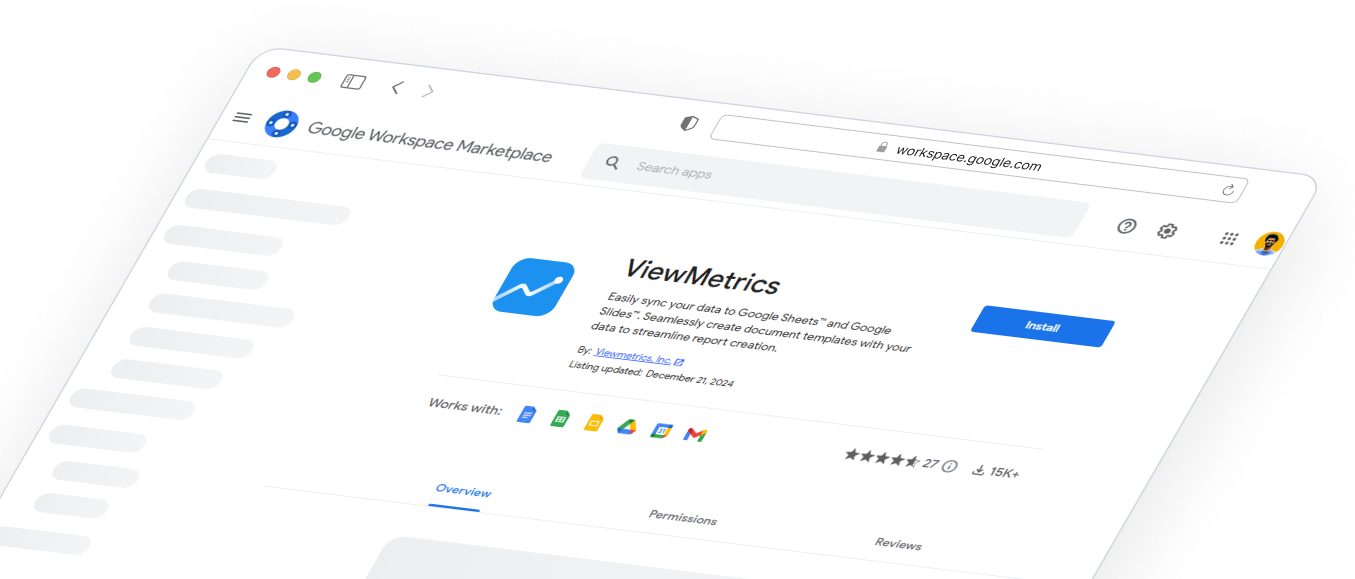
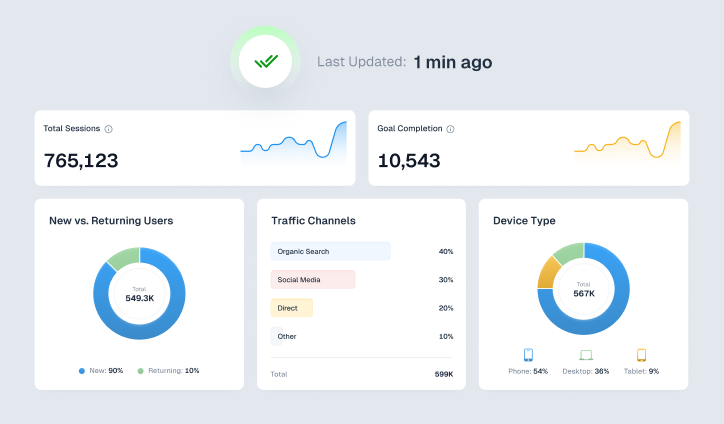
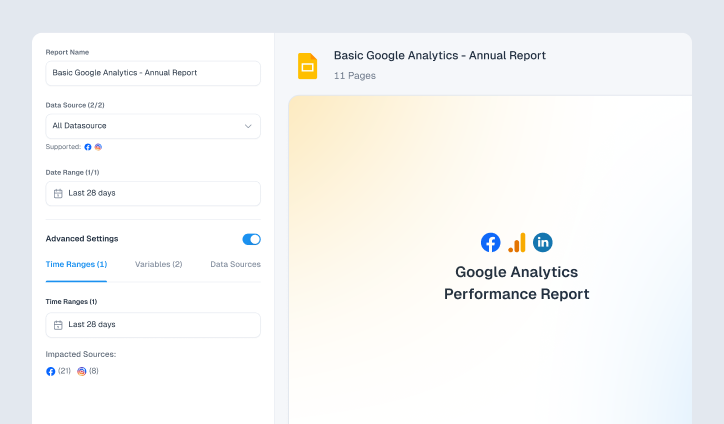
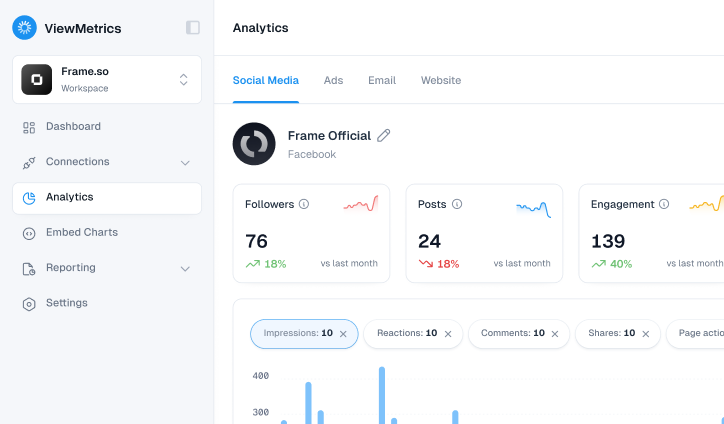
ViewMetrics simplifies this process by automatically generating structured, client-ready Facebook Ads reports. Instead of rebuilding reports every week or month, you can create and share professional summaries in minutes.
For agencies and consultants managing multiple accounts, this means:
- Less time on reporting
- Faster client updates
- Cleaner presentations
- More time focused on performance optimization
Follow these steps to create a full Facebook Ads report using ViewMetrics:
Step 1: Create or Log in to Your ViewMetrics Account
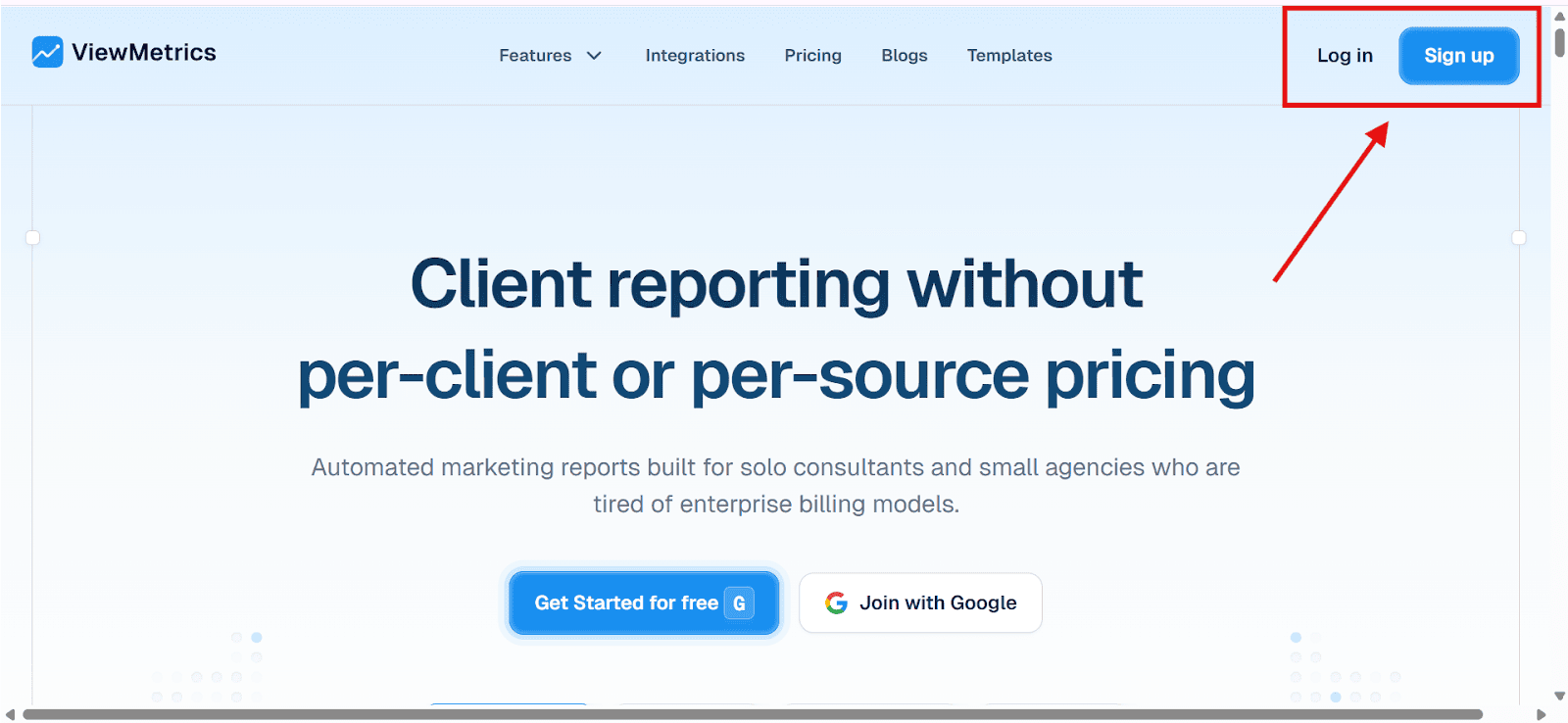
Start by heading to ViewMetrics and signing up with your email. If you already have an account, just log in to access your dashboard.
Step 2: Connect Your Facebook Ads Account
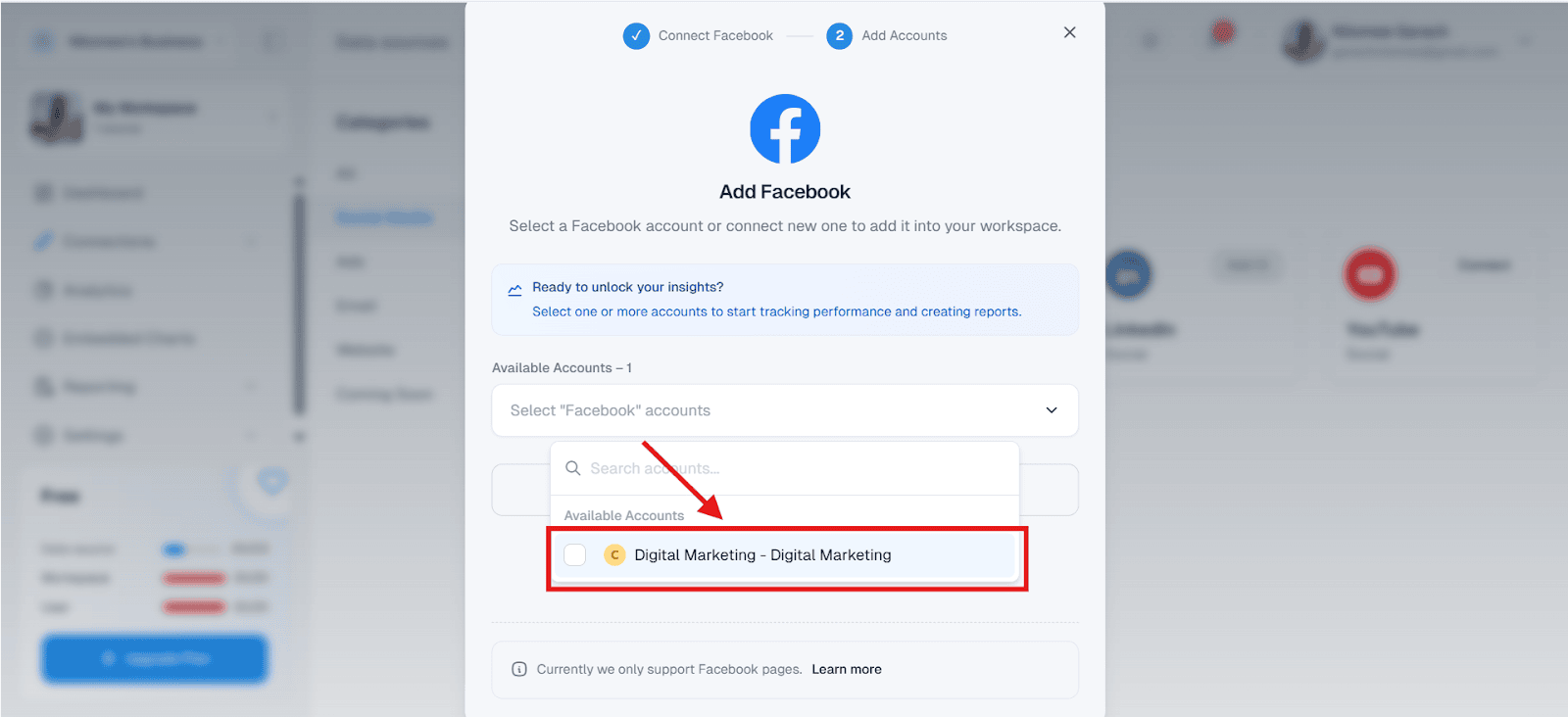
Once inside the dashboard, look at the right-side panel.
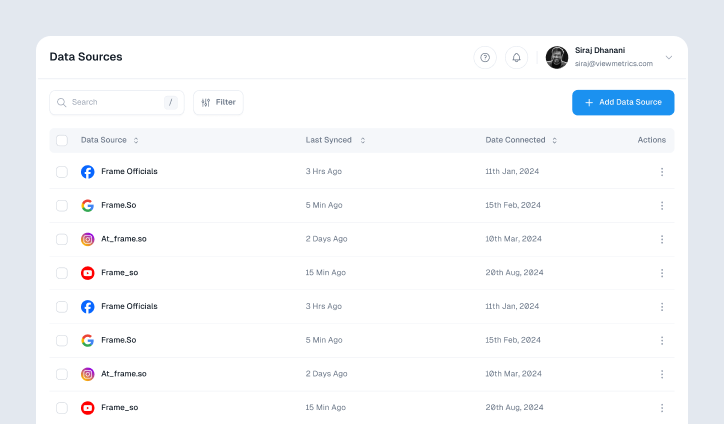
- Click on the “Connections” dropdown
- Choose “Data Sources”
- Click “Connect Data Source” and select Facebook Ads
Follow the on-screen prompts to log in with your Facebook credentials and give permission to link your ad account securely.
Also Explore – All Integrations
Step 3: Link Your Google Drive
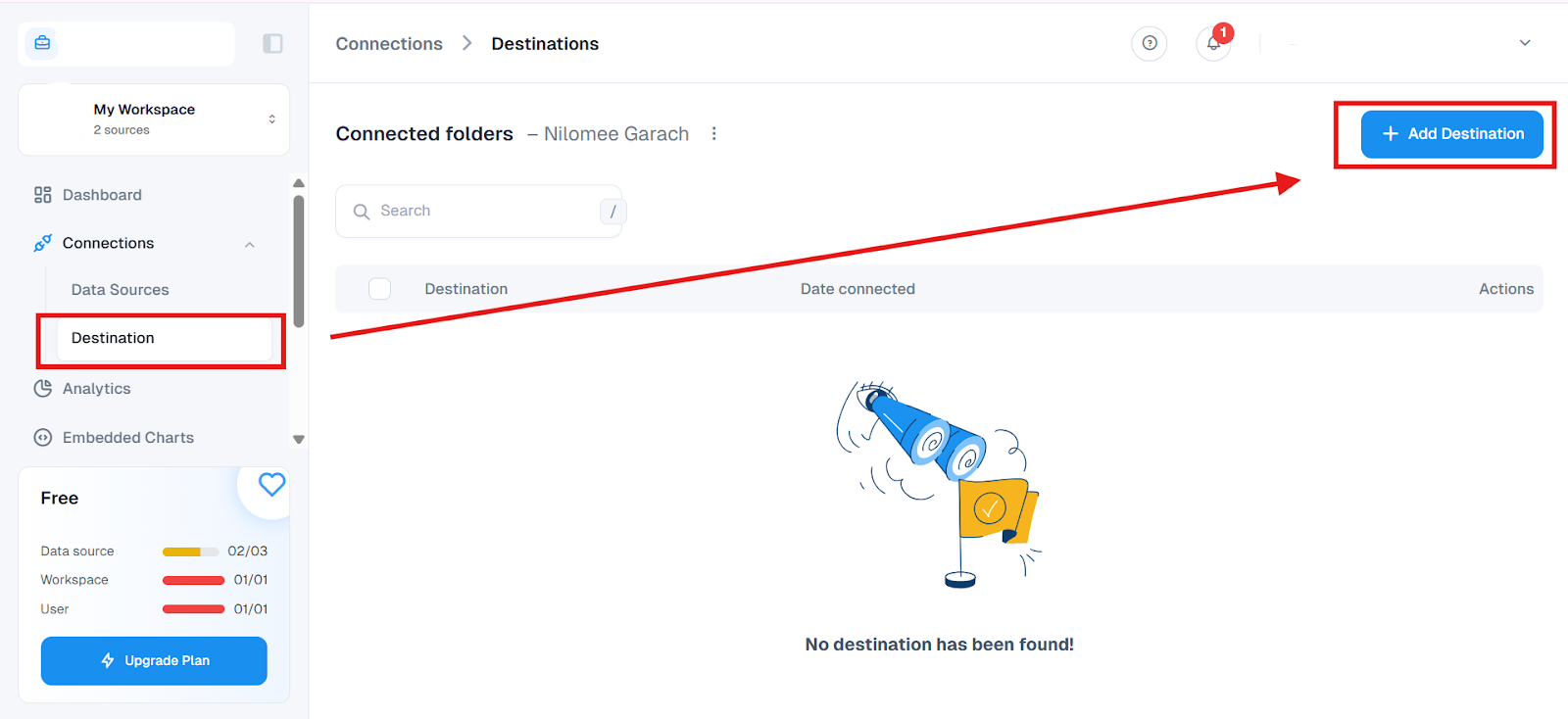
Under the same “Connections” dropdown, find the “Destination” option and select it.
- Choose Google Drive and sign in
- Grant access so your reports can be saved directly to your drive
- This makes it easier to organize, share, and access your reports from anywhere.
Step 4: Create a New Report
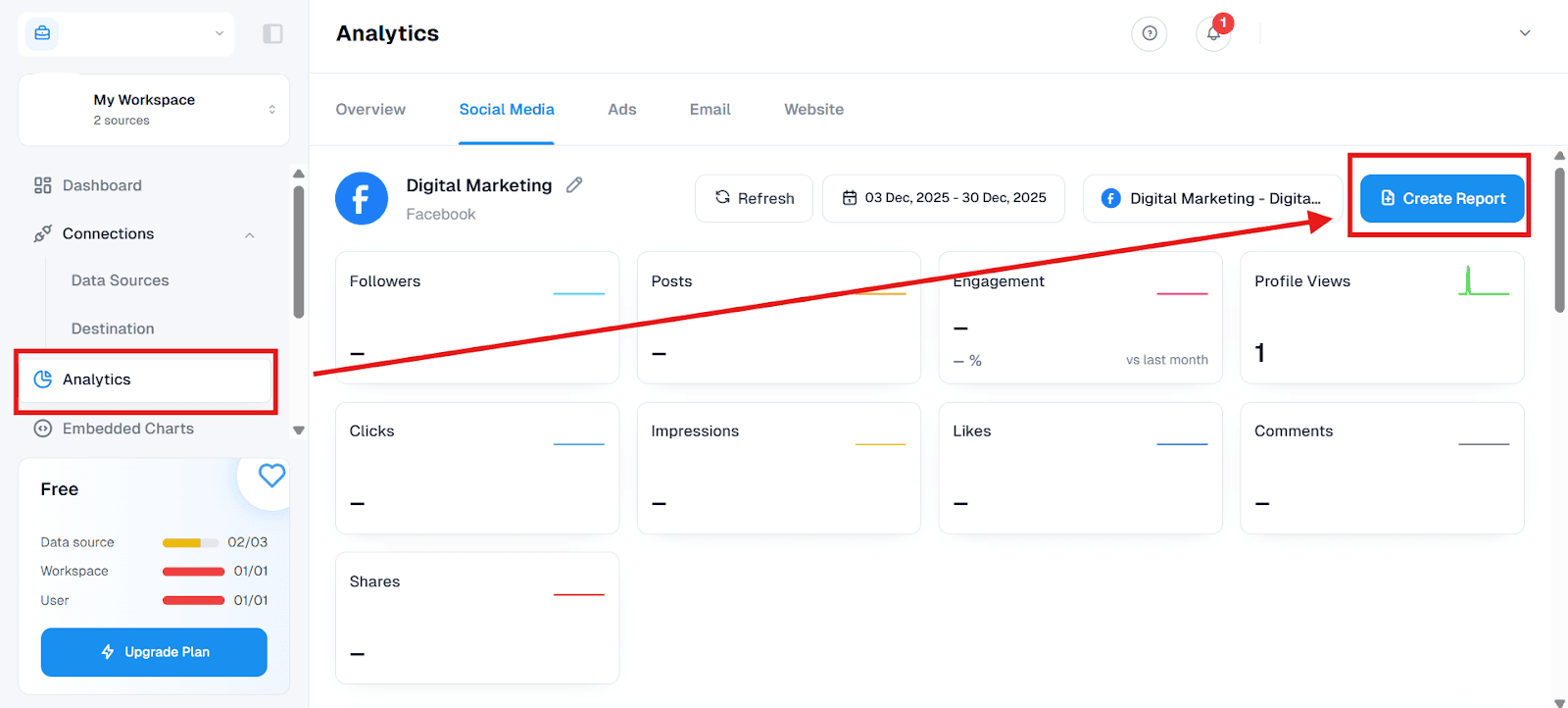
Now go to the Reports section in the dashboard.
- Click on “Create New Report”
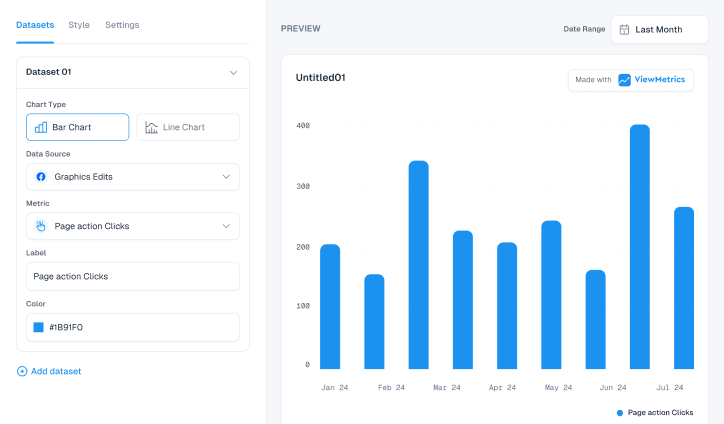
- From the available templates, choose Facebook Ads Report
This saves time, as the template includes all the common performance metrics most advertisers need.
Step 5: Choose Your Data Source and Time Range
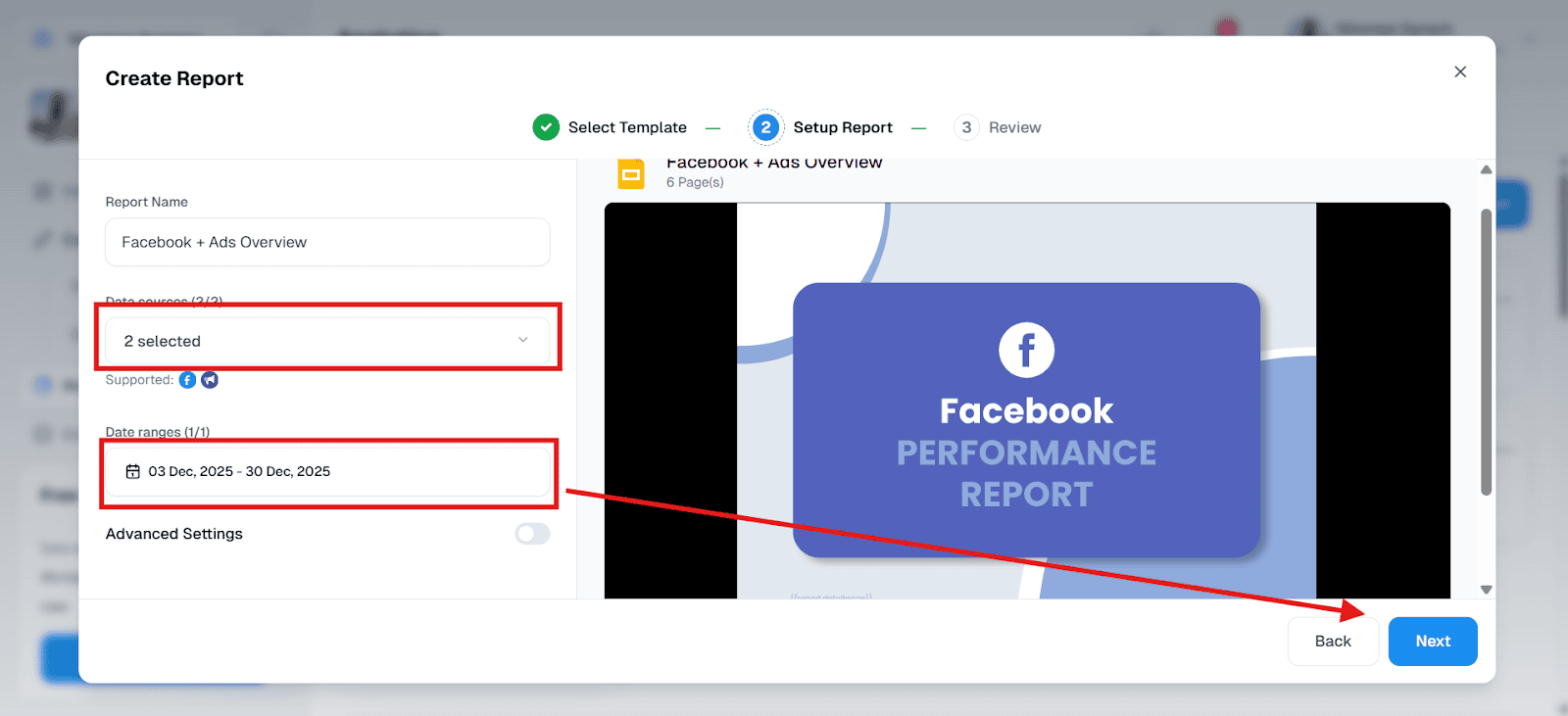
- Use the Data Source dropdown to select your connected Facebook Ads account
- Choose the time period for your report: past 7 days, last 30 days, or a custom date range that fits your campaign duration
This ensures the report is built around the exact performance window you want to analyze.
Step 6: Pick Your Report Format
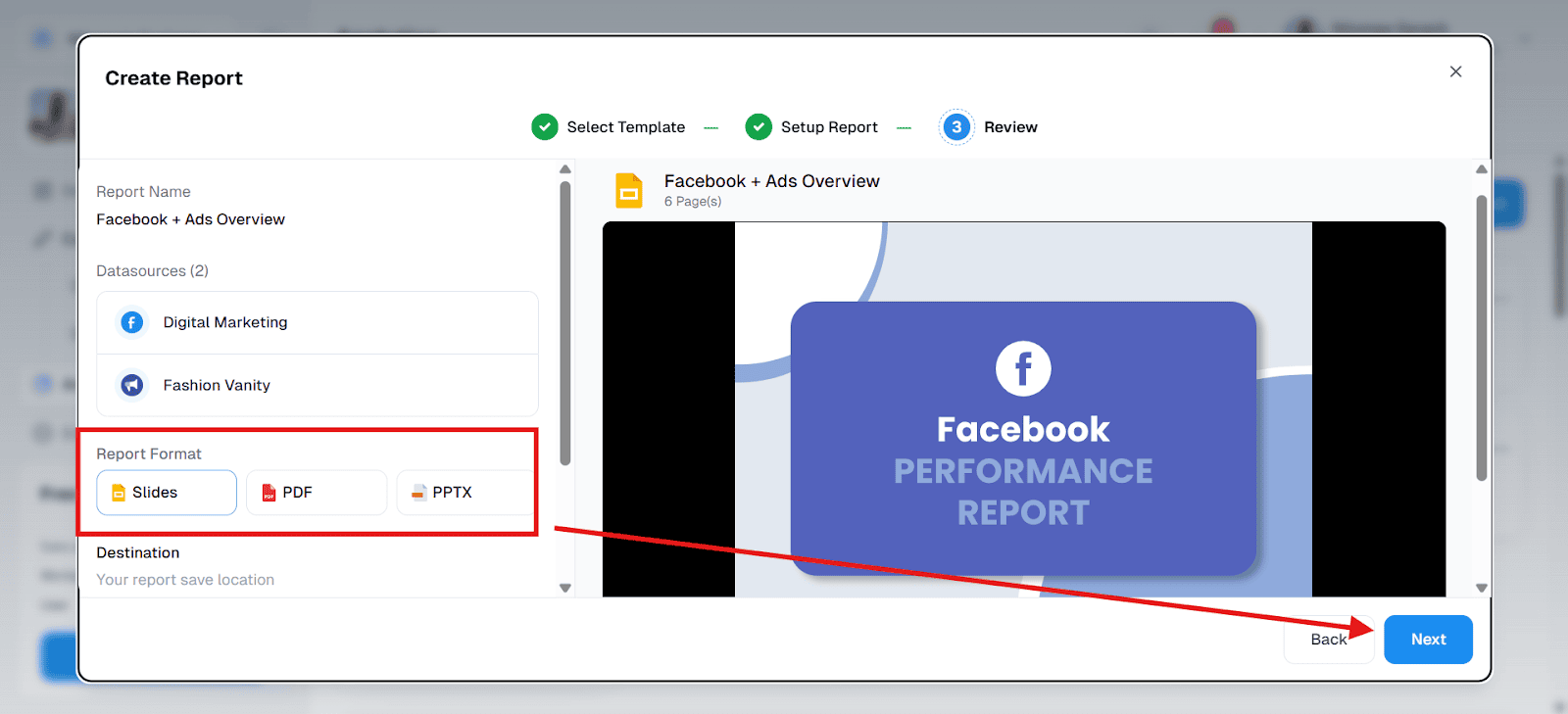
ViewMetrics gives you options to export your report in different formats, depending on your needs.
- Choose from PDF, Excel, or a presentation-style format
- Once you’ve made your choice, click “Create Report.”
The system will generate your report in a few seconds.
Step 7: Access and Share Your Report
When the report is ready:
- You can download it directly
- Or share it with your team through a link
- If you’ve linked Google Drive, the report will automatically be saved there, too, for easy reference later
Why Do You Need a Facebook Ads Report?
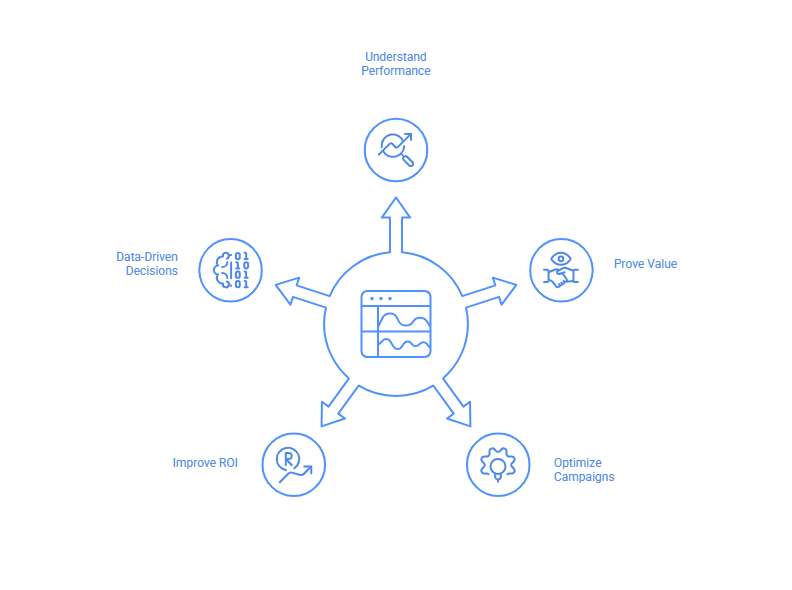
Here’s why every campaign needs a proper Facebook Ads report:
-
Understand Performance
If you’re investing in paid advertising, reporting isn’t optional. Clear data helps you understand performance, justify ad spend, and make informed decisions that improve long-term results.
-
Prove Value
If you’re running ads for a client or reporting to your boss, you need to show proof. A detailed report helps you explain how the budget was spent and what results were achieved. This builds trust and gives you credibility as a marketer.
-
Optimize Campaigns
No campaign is perfect from the start. With a report, you can see which ads, keywords, or audiences are underperforming. This lets you pause what’s not working and double down on what is. Small tweaks based on data often lead to big gains.
-
Improve ROI
When you track every dollar spent and every action taken, it becomes easier to improve your return on investment. A good report highlights which ads are bringing in results at the lowest cost, so you can get more out of your budget.
-
Data-Driven Decisions
Reports take the emotion out of marketing. Instead of going by gut feeling, you make decisions based on numbers. Whether it’s choosing the next audience to target or deciding the best time to run ads, data helps you stay one step ahead.
Closing Thoughts
A Facebook Ads report should do more than present numbers; it should make your next action clear.
When your reporting highlights what’s working, what needs improvement, and where to reallocate budget, growth becomes more predictable. Review your data consistently, refine your strategy, and let performance guide your decisions.
Frequently Asked Questions (FAQs)
-
Which metrics should I include in a Facebook Ads report?
Include impressions, reach, clicks, CTR, conversions, CPA, total spend, and ROAS. Pick metrics based on your campaign goal, like awareness, leads, or sales.
-
How often should Facebook Ads reports be created?
Weekly or monthly reports work well for most. If you’re running high-budget or fast-paced campaigns, consider daily or weekly updates.
-
What is the best format for a Facebook Ads report?
Google Slides, PDFs, or live dashboards are best. Use charts and visuals to make the data easy to understand.
-
How do I export a Facebook Ads report from Ads Manager?
Go to Ads Manager, click Reports, set your columns and filters, then export the file as CSV or Excel. You can also save the setup as a report template.
-
What’s the difference between campaign-level and ad-level reporting?
Campaign-level shows overall results. Ad-level breaks down the performance of each creative or format so you know what’s working.
-
How can I show ROI in a Facebook Ads performance report?
Compare the revenue or value generated to your total ad spend. Use ROAS or cost per conversion to show if the campaign was profitable.